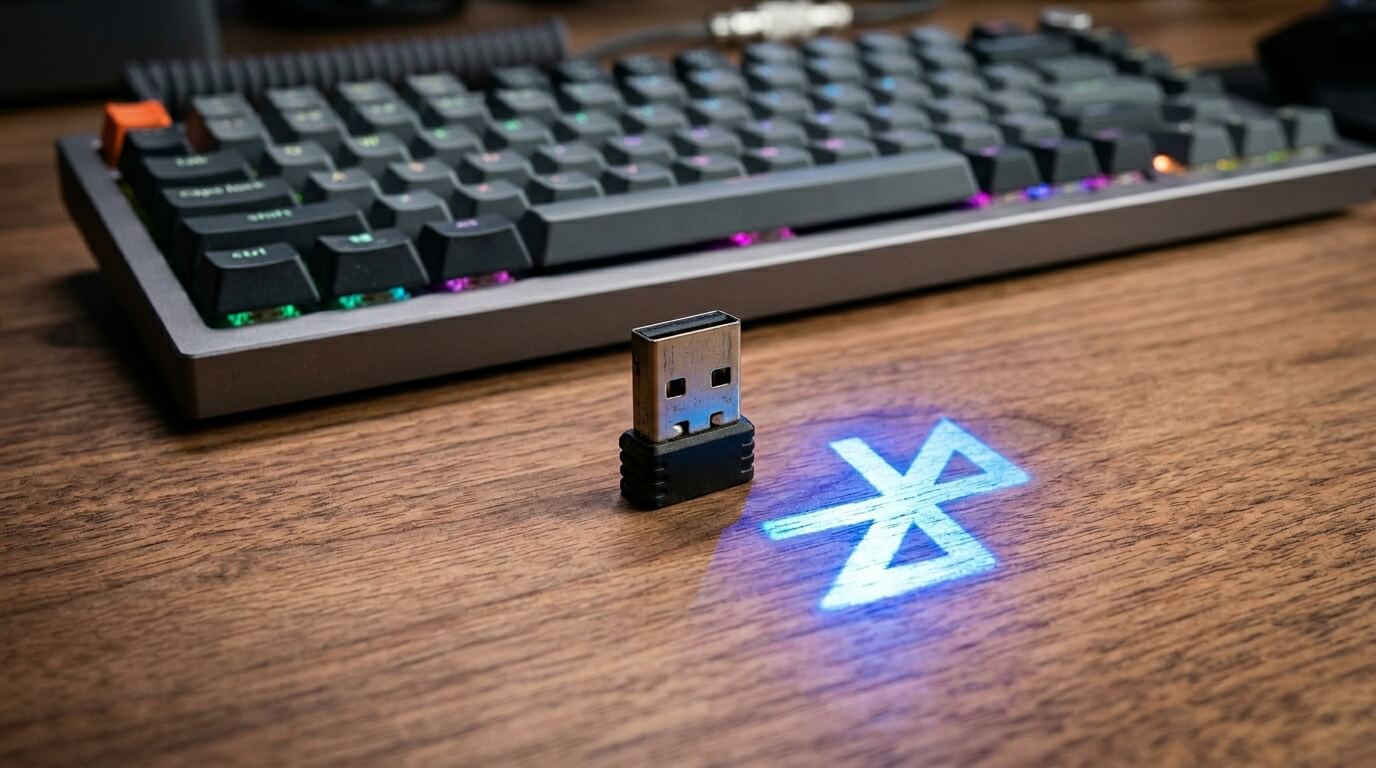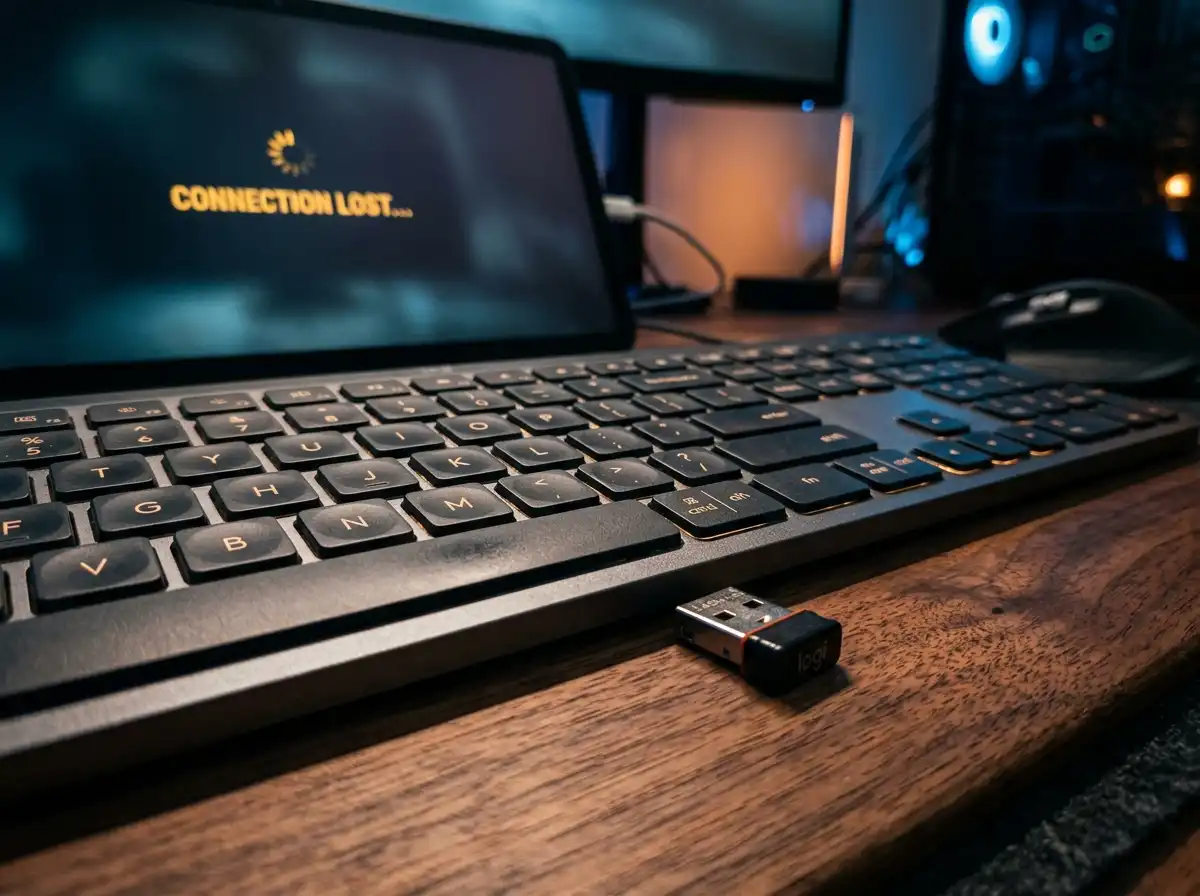
Why Do Cheap Wireless Keyboards Keep Disconnecting? (5 Quick Fixes)
There is nothing more frustrating than being in the middle of a focused typing session or a tense gaming match, only for your wireless keyboard to suddenly freeze, stutter, or drop inputs completely. While it is easy to blame a cheap keyboard for a dropped connection, the truth is that 90% of wireless connectivity issues are caused by environmental interference, power management settings, or poor desk setups. Before you throw your peripheral in the trash, run through this ultimate diagnostic guide to lock down your signal.
🛠️ 30-Second Quick Diagnostic
1. The "Line of Sight" Test ▼
Move your keyboard within 12 inches of the receiver. If it instantly reconnects, your desk or PC case is causing signal interference.
2. The "Router Clash" Test ▼
Is your Wi-Fi router sitting right next to your PC? Both use the 2.4GHz frequency. Move the router at least 3 feet away to clear up "dropped keystroke" issues.
Fix 1: Stop USB 3.0 Interference
It is a little-known engineering fact that active USB 3.0 ports emit a frequency noise that directly jams 2.4GHz wireless signals. If your keyboard receiver is plugged in right next to a heavy USB 3.0 external hard drive, it will stutter. The Fix: Move your keyboard dongle to a USB 2.0 port on the opposite side of your motherboard.
Fix 2: Bypass Windows USB Selective Suspend
By default, Windows tries to save electricity by cutting power to USB ports it thinks are "inactive." This often causes wireless dongles to go to sleep mid-sentence. The Fix: Open Windows Power Options > Change Plan Settings > Advanced Power Settings > USB Settings, and completely disable "USB selective suspend setting."
Fix 3: The Extension Cable Hack
Radio frequencies cannot pass through thick solid metal. If your PC tower is sitting on the floor and the receiver is plugged into the back, the signal is bouncing off a metal wall. The Fix: Buy a cheap $5 USB extension cable, plug it into the back of your PC, and route the receiver so it sits directly on your desk, inches from your keyboard.
Fix 4: Update Your Motherboard's Bluetooth Drivers
If you are using a native Bluetooth connection without a dongle, the problem is likely your motherboard's out-of-date drivers, not the keyboard itself. Windows updates often break generic Bluetooth drivers. Go to your motherboard manufacturer's website and download the latest Intel or AMD Bluetooth driver package directly.
Fix 5: Check for Battery Voltage Drops
Cheap AAA batteries do not provide a steady power curve. When they drop below 20% capacity, they often lack the voltage required to push a wireless signal through interference, causing random disconnects even if the keyboard turns on. The Fix: Swap to high-quality lithium batteries, or upgrade to a modern rechargeable deck.
If you have tried all these fixes and your keyboard is still failing, the internal wireless antenna is likely damaged. You don't have to spend a fortune to get a reliable replacement. Check out our latest guide on the best budget Bluetooth keyboards under $30 for highly reliable, multi-device options that won't drop your signal.
Karim
Wireless desk enthusiast and mechanical keyboard obsessive. I test, review, and tear down tech to help you build the perfect, clutter-free setup.